

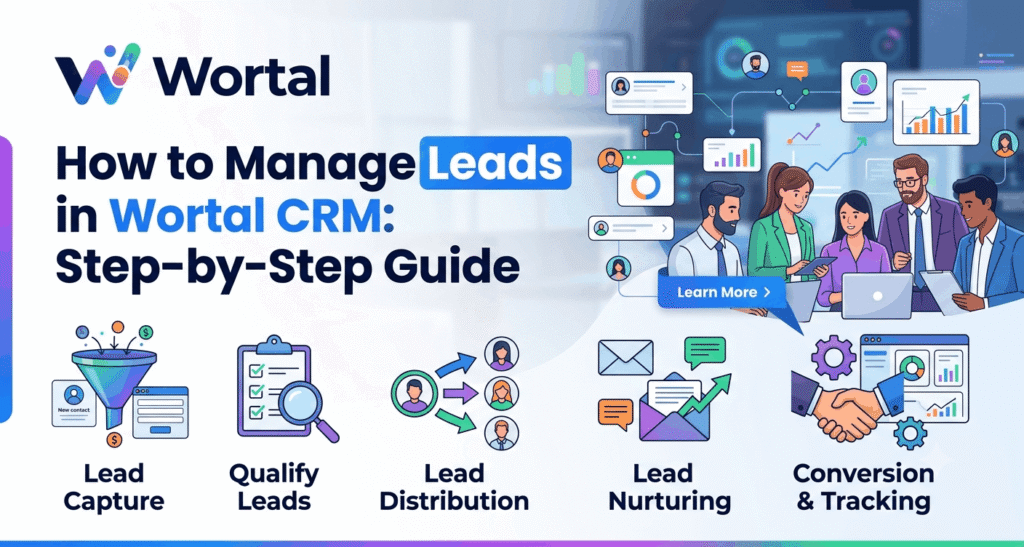

If you’re running a sales team and leads keep slipping through WhatsApp chats, missed calls, or random Excel sheets, you already know the cost. A buyer asks for a quote, nobody follows up in time, and the deal goes to a competitor. This is exactly the gap Wortal CRM’s Lead Module is built to close.
In this guide, I’ll walk you through how lead management actually works inside Wortal CRM – from the moment an enquiry comes in, through follow-ups, status updates, and finally converting a qualified lead into a deal. If you’re a business owner, distributor, manufacturer, or sales executive using Wortal CRM lead tracking daily, this is the workflow you’ll end up following on most days anyway, so it helps to know it properly.
Why Lead Management Matters in Wortal CRM
Every enquiry your business gets – through IndiaMART, WhatsApp, Google Ads, a phone call, or even someone you met at a trade fair – is a potential sale. Getting leads isn’t usually the hard part. Tracking them properly is.
Without a system, here’s what tends to happen: a salesperson scribbles a lead’s number on paper, forgets to call back, and the owner has no real idea how many enquiries are sitting untouched. Wortal CRM’s lead management software fixes this by giving every enquiry a record, a status, an owner, and a follow-up date, all inside one screen instead of scattered across notebooks and chat threads.
It’s not just about storing contact details somewhere safe. It’s about making sure nothing falls through the cracks, every follow-up actually gets done, and the sales team is accountable to real numbers instead of “I think I called them.”
Step-by-Step Guide to Managing Leads in Wortal CRM
Step 1: Open the Lead List
Go to Sales Module → Inquiry or Lead. This is the screen you’ll probably open more than any other in Wortal – it shows every lead with their name, phone number, status, source, and the date they came in.

Use the search bar (Ctrl + K) when you need to find a lead fast, by name, phone number, email, or business name. If you’re trying to check leads from a particular date or source, click the funnel icon and filter by status, assigned user, date range, or any custom field you’ve set up.
Step 2: Create a New Lead
Click + Lead, then pick Add Lead for a manual entry, or Import Lead if you’re uploading a batch from Excel (up to 1000 entries at once).
For a manual entry, you’ll fill in:
- Lead Name (required)
- Contact Number
- Source – IndiaMART, WhatsApp, Google Ads, Facebook, Cold, Offline
- Status – starts as “New” by default
- Remark – a quick line on what the buyer actually asked for
Say a textile trader from Bhiwandi calls in asking about 500 pieces of cotton shirts. You’d log the lead, mark the source as “Cold,” and write the remark more or less in the buyer’s own words. Sounds like a small thing, but it saves a lot of confusion later when someone else picks up the follow-up and has no other context to go on.
If it’s a serious B2B enquiry, expand Show Other Details and add the business name, product, expected amount, and address too. That extra data is what makes forecasting and location-based filtering possible down the line.

Step 3: Update Status Directly From the List
You don’t have to open every single lead just to change its status. Click the status label right in the Lead List and pick from New, Assigned, Contact in Future, In Process, or Dead.
Reassigning works the same way – click the assigned user’s name and pick someone else.
This matters more than it sounds like, because owners can scan the whole list and see where things stand at a glance, instead of clicking into 50 records one at a time.
Book a Free Demo
See how Wortal can simplify your business and help you close more deals.


Step 4: Log Calls, Meetings, and Visits
Click into a lead’s name to open Lead Detail, then use the Activities tab to log a call, meeting, or visit. There’s an actual difference between Log and Follow-up here – Log is for something that already happened, Follow-up is for scheduling what’s coming next.
If your team is using WhatsApp to talk to clients, the Communication button lets you send a WhatsApp or email message straight from the lead record, as long as the integration’s already set up.

Step 5: Track Everything in One Place
Lead Detail also has tabs for Tasks, Notes, Docs, and History. Tasks is where you’d put things like “send quotation” or “call tomorrow.” Docs is for attaching a quotation PDF or catalogue. History shows every change made to that lead – status updates, reassignment, product changes – which comes in handy when you need to figure out who did what and when.
Step 6: Convert Qualified Leads to Deals
Once a buyer’s moved past general interest – pricing is actually being discussed, product requirement is confirmed – click Convert at the top of Lead Detail. This takes you to the Convert to Deal screen, already pre-filled with the lead’s data. You’ll pick the deal stage, confirm contact and address details, and add product line items if needed.
After that, the lead’s status changes to “Converted,” and the deal lands in your pipeline at whatever stage you chose, usually “Prospecting.”
Example Workflow: A Day in Wortal CRM
A distributor in Surat gets a WhatsApp enquiry for fabric rolls. The salesperson adds it as a lead, source “WhatsApp,” status “New,” with a remark about the quantity asked for. Two days later, after a call confirms there’s real interest, status moves to “In Process” and a follow-up gets scheduled for the following week. Once pricing is agreed, the salesperson hits Convert, fills in product and quantity, and the lead turns into an active deal in the pipeline – with the whole conversation history still attached.
Best Practices for Lead Management in Wortal CRM
- Every lead needs a status, an assigned user, a follow-up date, and a remark. No shortcuts here.
- Don’t let a lead sit in “New” for more than a day.
- Log calls and WhatsApp conversations inside the CRM, not just on your phone where nobody else can see them.
- Use bulk actions when you’re reassigning or updating a large batch of leads – doing it one by one wastes time.
Common Mistakes to Avoid
- Skipping the source field, which quietly breaks your marketing tracking later on.
- Leaving the amount field blank on high-value B2B leads, making forecasting next to useless.
- Converting a lead before pricing or product discussion has even started.
- Creating a duplicate person record during conversion instead of checking if the contact already exists.
Benefits of Using Wortal CRM for Lead Tracking
- One place for every enquiry, no matter where it came from.
- Faster follow-ups because every lead has a clear next action.
- Better forecasting since product and amount details get captured early.
- Real accountability – owners can see exactly which leads are stuck and with whom.
Frequently Asked Questions
1 Can I update a lead’s status without opening the full lead record?
Yes. You can change the status directly from the Lead List by clicking the status label next to any lead.
2 What happens to a lead’s history after it’s converted to a deal?
The lead stays in the system as a historical record. The deal becomes the active opportunity, and activities can be carried forward depending on how it’s configured.
3 How many leads can I import at once?
Up to 1000 entries per upload using the Excel import template.
4 Can I reassign multiple leads at the same time?
Yes. Select the leads using the checkboxes, click Update, then use the Assigned User tab in the Bulk Update panel.
5 What’s the difference between Log and Follow-up in the Activities tab?
Log records something that already happened. Follow-up schedules what’s coming next.
6 Does Wortal CRM support WhatsApp communication from inside a lead record?
Yes, if WhatsApp integration is enabled, you can message a lead directly from the Communication button in Lead Detail.
Conclusion
Managing leads doesn’t have to mean scattered notes and missed follow-ups. With Wortal CRM, every enquiry – whether it comes from IndiaMART, WhatsApp, or a cold call – gets tracked from first contact all the way to conversion. If you’re still doing this manually, it’s worth setting up your Lead Module properly and seeing for yourself how many follow-ups it stops you from missing.