System Logic And Strategic Strength
System Logic (Organization Lifecycle)
1.1 When Organization Is Created
- Appears in the Organization list
- Can link multiple persons
- Can be assigned to a user
1.2 When Converted to Customer
- Available in billing module
- Used in deals
- Used in orders
Strategic Strength of Organization Module
- Supports B2B structure
- Allows multi-person linking
- Clean billing and shipping separation
- Scalable for textile wholesalers
Organization Details
Organization — Detail Screen (Right Panel)

1.1 What Happens When an Organization Is Selected?
When a user selects an organization from the list, the right panel displays its full details.
Header Section (Organization Detail)
Displays:
- Organization name
- Primary contact number
- Icon
- Convert to Customer button
- Three dot menu (⋮)
Convert to Customer
Navigation Path:
Sales Module → Contact→ Organisation → Click on Convert to Customer

What It Does
Converts the organization into:
- An active customer
- A billing-enabled entity
Why it matters:
Enables billing workflows and customer-level tracking.
Three Dot Menu (⋮ Top Right)

4.1 Common Options
Options can include:
- Person details
- Organization details
- Billing details
- Shipping details
- Attachment
- Delete
Purpose:
- Add more structured information (addresses, linked people, files)
- Delete the organization (permission-controlled)
Basic Details Section (Company Master Fields)
Displays company-level master fields such as:

- Name
- Contact number
- Email ID
- PAN number
- Credit period
- Website
- Date of incorporation
Person Details (Under Organization)

6.1 What This Section Shows
This section lists individuals linked to the organization.
Expandable card can include this details:
- Contact number
- Email
- PAN
- Designation
Actions:
Purpose:
Supports multiple decision makers under one organization.
This is especially important in a B2B textile workflow.
Billing Details

Displays:
- Full address
- GST type
- GSTIN (if applicable)
Supports:
- Multiple billing addresses
Used in:
Shipping Details

Displays:
- Full shipping address
- Receiver name
- Receiver company
- Receiver phone
- Receiver email ID
Important for:
- Dispatch
- Warehouse coordination
- Logistics clarity
Especially useful for online delivery execution.
Other Details
Contains:
Used for internal context.
Example:
“Deals in digital prints. Prefer cash discount.”
Organization’s Layout, Controls And Filter

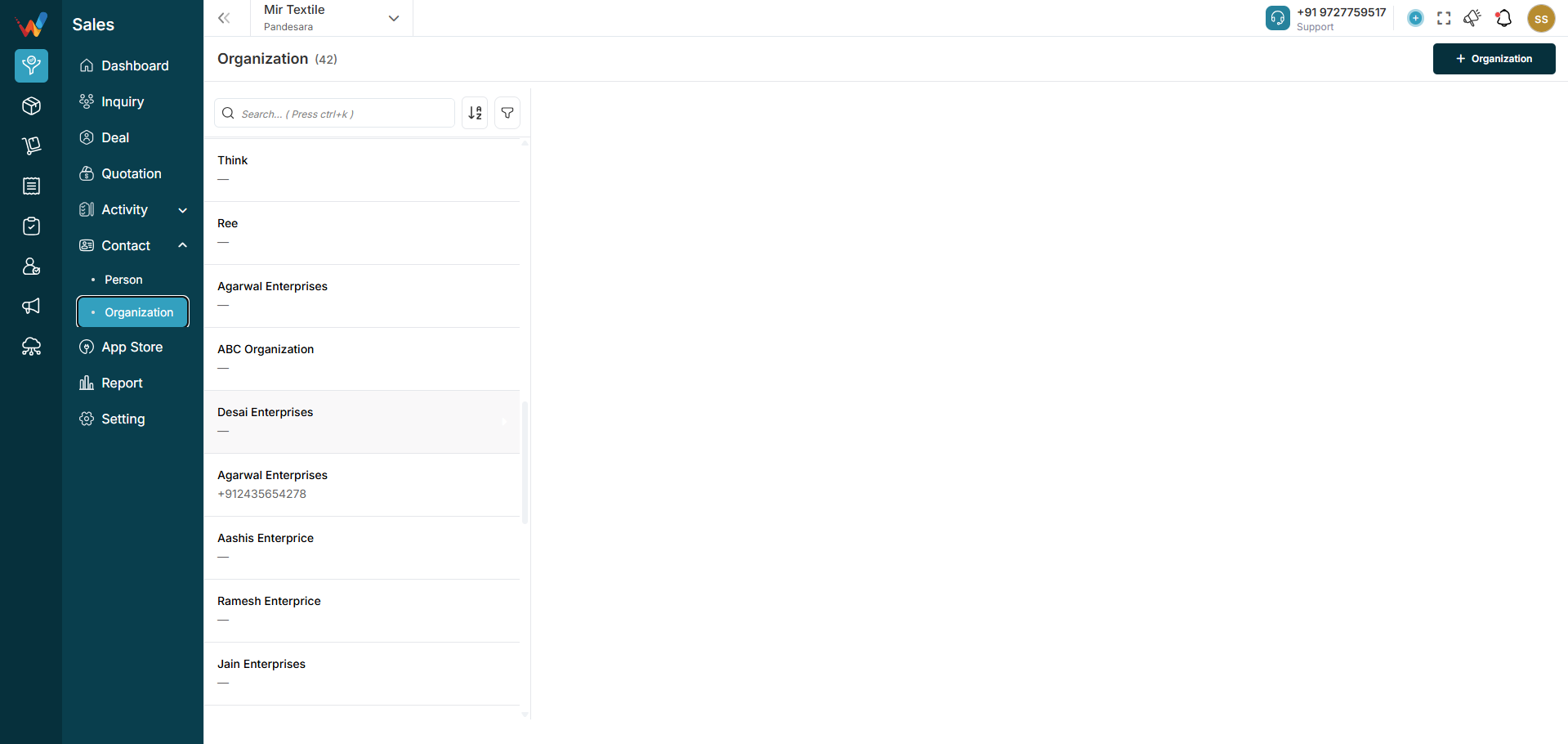
Left Panel — Organization List
Displays:
- Organization name
- Primary contact number
- Scrollable list
- Total count at the top (example: 330)
Behavior:
Clicking any organization loads its details in the right panel.
List Screen Controls

2.1 Search Bar (Ctrl + K)
Used for quick access when the database is large.
Capabilities:
- Search by organization name
- Search by mobile number
2.2 Sort Icon (A–Z / Z–A)

Allows alphabetical sorting of the organization list.
2.3 Filter Icon
Open the side filter panel.


2.4 Add Organization Button (+)
Navigation Path:
Sales Module → Contact→ Organization → Click on + Organization

Creates a new organization.
Filter Panel (List Screen)
When user click on filer icon

3.1 Assigned User
Operator: In
Select one or more assigned users.
Used to:
Filter organizations created or owned by specific salespeople.
3.2 Created At
Operator: Between
Date range picker.
Used for:
- Finding recently added organizations
- Filtering by a time period for reporting and review
List View
Navigation Path:
Sales Module → Contact → Organization

2.1 Purpose of This Screen
This screen displays all company-level contacts stored in the CRM.
An Organization represents:
- A textile trader
- A distributor
- A wholesaler
- An export company
- A retail chain
Unlike Person, Organization represents the company entity.
Introduction
The Organization Module in WORTAL CRM is designed to manage and maintain records of business entities such as companies, firms, distributors, retailers, and corporate clients. An Organization acts as a central structure under which multiple related records such as Persons (contacts), Deals, and Activities—are grouped and managed efficiently.
This module allows users to store essential business information including company name, contact details, email, website, credit terms, and incorporation data. It also supports managing associated contacts (Person Details), along with billing and shipping addresses, ensuring complete and organized business records.
Additionally, users can perform actions such as updating details, adding attachments, and converting an organization into a customer directly from the interface. The module provides a clear, centralized view of all interactions and relationships linked to the organization, improving coordination, visibility, and decision-making.
By consolidating all related data under a single entity, the Organization Module enhances relationship management, streamlines sales processes, and enables better tracking of business-level engagements within the CRM.
System Logic And Strategic Strength
System Logic After Save
When saved:
- Person record is created
- Appears in the Person list
- Can be linked to:
- Lead
- Deal
- Quotation
- Organization
- Order
- Visit
- Call
- Can be converted to Customer later
Strategic Design Strength
This form is strong because it:
- Avoids duplicate data
- Supports multi-address structure
- Supports organization linking with an individual person
- Supports textile distribution workflow
Information And Organization Details
Basic Information Section
1.1 Person Name * (Mandatory)
Full name of the individual.
Primary display name across the CRM.
1.2 Phone No. (Mandatory Recommended)
Country code selector (default: +91)
Multiple numbers can be added using the plus icon.
Used for:
- Calls
- WhatsApp
- Lead linking
- Duplicate detection
1.3 Email ID (Optional)
Multiple emails can be added using the plus icon.
Used for:
- Email communication
- Invoice sharing
- Marketing campaigns
1.4 PAN No. (Optional)
Used for:
- Financial documentation
- Compliance reference
1.5 Credit Period (Days)
Defines credit terms for this contact.
Example:
30 days
Used in:
- Sales
- Billing
- Payment reminders
1.6 Special Date (Checkbox)
When checked, two additional fields appear:
- Birth date
- Anniversary date
Used for:
- Relationship marketing
- Automated greetings
- CRM reminders
Organization Details (Collapsible Section)
2.1 When to Use
Used when the person belongs to a company.
2.2 Common Fields
- Organization Name
- Dropdown selection of existing organizations
- Designation
Examples:
- Purchase manager
- Owner
- Accountant
- Helps identify decision-making role.
- Organization Phone / Email
Separate from personal contact details.
- Website
Organization website.
- PAN No. (Organization Level)
Used if organization has separate PAN.
- New Organization
Creates a new organization directly from this form
Prevents switching screens
Note:
A contact person belonging to multiple organizations can be managed and tracked from here (based on configuration).
Key System Logic
1 Person as a Master Record
Person is a core master record. It can be:
- Standalone
- Linked to organization
- Converted to customer
- Used in lead
- Used in deal
- Used in quotation
Important note:
Deleting a Person may impact linked modules and records.
2. Why the Person Module Is Important
- Central contact database
- Prevents data duplication
- Shared visibility across teams
- Used across all relevant modules
In textile CRM context, a Person can be:
- Buyer
- Purchase manager
- Accountant
- Broker
- Decision maker
Top Actions
Three Dot Menu (⋮ Top Right)

1.1 Common Options
Options can include:
- Organization details
- Billing details
- Shipping details
- Attachment
- Delete
Purpose:
- Allows adding additional information to the Person record
- Allows deletion (based on permission and business rules)
Convert to Customer Button
Navigation Path:
Sales Module → Contact→ Person → Click on Convert to Customer

2.1 What It Does
When clicked:
- Person is promoted or converted into a Customer
Used when:
- Deal is closed
- Person becomes a regular billing entity
Benefit:
- Avoids duplicate customer creation and keeps data unified
List Panel And Detail View
Left Panel — Person List

1.1 What You See in the List
This is a vertical list of all saved contacts. Each row shows:
- Person name
- Primary contact number
Example:
- Zeeshan Saleem
- +91 9760009000
1.2 Search Bar (Top)
Used for quick access when the contact database is large.
Capabilities:
- Search by name
- Search by mobile number
Shortcut: Ctrl + K
1.3 Sort Icon (A–Z / Z–A)

Enables alphabetical sorting of the person list.
1.4 Filter Icon


Opens the filter panel (explained later in this document).
1.5 + Person Button (Top Right)
Navigation Path:
Sales Module → Contact→ Person → Click on + Person

Creates a new Person record.

Person Detail View (Right Panel)

2.1 What Happens When You Click a Person?
When a user selects any person from the list, full details open on the right side.
Person Detail — Section Breakdown
3.1 Header Section

Shows:
- Profile icon
- Person name
- Primary contact number
Right side typically includes:
- Three dot menu (⋮)
- Convert to Customer button
3.2 Basic Details
Contains core identity information such as:
- Name
- Contact number
- Email ID
- PAN number
- Credit period
- Birth date
- Anniversary date
Edit behavior:
- Edit icon allows updating basic information
Purpose:
This is the primary identity and communication information of the contact.
3.3 Billing Details
Displays billing-related information such as:
- Address
- City
- State
- Country
- GST type and more
Billing card actions (⋮ inside billing card) may include:
Used when:
- Contact becomes a billing party
- Contact is linked to quotation or invoice
Notes:
- Multiple billing details can be added.
3.4 Shipping Details
Same as Billing (Checkbox)
When enabled, the shipping address is auto-copied from billing.

Shipping Address Fields
Same structure as billing, typically showing:
- Address
- City
- State
- Country
Parcel Receiver (If Different From Buyer)
Includes:
- Receiver name
- Company name
- Contact number
- Email ID
Shipping card actions (⋮ inside shipping card) may include:

Used when:
- Receiving person is different from buying person
- Shipping details are required for quotation and invoice
Notes:
- Multiple shipping details can be added.
3.5 Other Details
Contains:
Used for:
Sales notes and historical context, for example:
“Shared details on WhatsApp. Demo scheduled 27-2.”
At the bottom, the system usually shows audit fields such as:
- Last updated by
- Created by
- Date and time
Purpose:
Supports reporting, accountability, and audit trail.