Navigation Path:
Sales Module → Contact → Person

2.1 Purpose of This Screen
This screen displays all individual contacts stored in the system.
A Person can exist independently or from :
- Deal
- Organization
- Customer

Navigation Path:
Sales Module → Contact → Person
This screen displays all individual contacts stored in the system.
A Person can exist independently or from :
The Person Module in WORTAL CRM is designed to manage and maintain detailed records of individual contacts associated with business activities. A ‘Person’ represents a real individual—such as a buyer, decision-maker, manager, or any stakeholder linked to Leads, Deals, or Organizations.
This module serves as a central repository for all personal and professional information, including contact details, email, identification data (e.g., PAN), credit terms, and important dates like birthdays and anniversaries. It also allows users to manage billing and shipping addresses, ensuring accurate and organized record-keeping

User reaches client location
Clicks Check In
System captures GPS and time
User meets client
Clicks Check Out
Adds summary and proof
Duration auto-calculates
Used when a field executive reaches the client location and starts the visit.
Default: OFF
When OFF (GPS mode):
When ON (Manual mode):
User manually enters:
Used when:
User must select what the visit is related to:
This decides where the visit record appears.
Dropdown depends on Visit For selection.
Example:
If Visit For = Lead → Then you will see all lead’s records.
GPS mode:
Manual mode:
System stores:
Internal team members present during the visit.
Used for:
Max: 6 photos
Purpose:
Ensures:
On click, the system stores:
Visit status becomes: In Progress
Title of the visit.
Examples:
Select Lead / Deal / etc.
Then select the specific record.
Future visit date and time.
Options can include:
Used for:
Detailed planning notes.
Example:
“Need to demonstrate inventory module.”
Team members assigned to the visit.
User defines visit location. Fields can include:
Ensures:
Used when the user completes the visit.
Top section typically shows (read-only):
Used if:
Summary title of the completed visit.
What happened during the visit?
Examples:
Default:
Manual mode:
Max: 6 photos
Ensures:
User can instantly create a follow-up:
Linked to the same record.
On click, the system:
Note:
Visits often do not allow edit after completion for reporting and audit purposes.
Navigation Path:
Sales Module → Activity → Visit → Click on Filter Icon
When clicking the filter icon, the user first selects a Search Field, then the system shows the relevant input (dropdown, time filter, etc.).
Options can include:
Especially useful for:
Users can:
Locked column:
Field manager:
Admin:

Shortcut Key: Ctrl + K
Examples:
Navigation Path:
Sales Module → Activity → Visit → Click on Filter Icon

Open the advanced filter panel (right sidebar).
Used to narrow down visit records based on location, timing, and other fields.

Navigation Path:
Sales Module → Activity → Meeting → Click on Follow Up


Used to:
Navigation Path:
Sales Module → Activity → Meeting → Click on Visit


Used to:

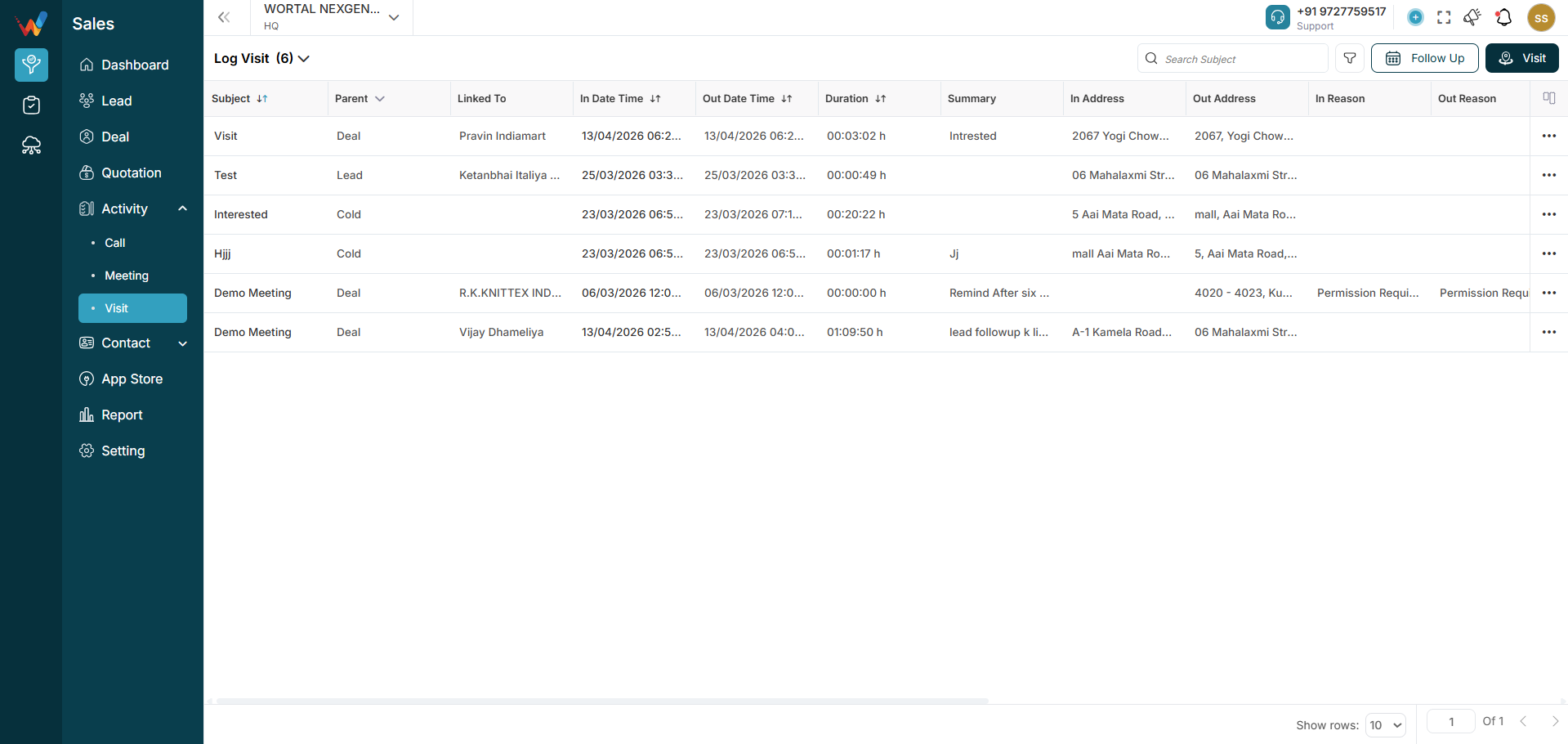
Log Visits (5)
Shows visits that are completed and logged. These typically include:
Follow Up Visits (3)
Shows scheduled future visits.
Used for:
Cancel Visits (0)
Shows visits that were scheduled but later cancelled.
Important for:
All Visits (8)
Shows everything combined:
Navigation Path:
Sales Module → Activity → Visit

This screen is used to track physical field visits made by sales team members.
Unlike Calls and Meetings, a Visit includes:
This module is mainly designed for on-field team monitoring.
Title of the visit.
Examples:
Helps identify visit purposes quickly.
Indicates which module the visit belongs to:
This determines where the visit appears in the CRM.
Name of the person or deal connected to the visit.
Examples:
Time when the user checked in at the location.
Captured when the user presses Check-in.
Time when the user checked out.
Captured when the user presses Check Out.
Auto-calculated:
Out time − In time
Used to measure:
Short description of what happened during the visit.
Example:
“Explained pricing and product features.”
Important for:
GPS or manually entered location at check-in.
Used to verify:
GPS location at check-out.
Used for:
Reason selected when checking in through manual entry (if real-time check-in was not possible).
Examples:
Reason or remark added while checking out.
Examples:
2.12 Attendees
internal team members present during the visit
2.13 Created By
User who logged the visit.
2.14 Updated By
User who last edited the visit record.
The Visit Module in WORTAL CRM is designed to log, manage, and track physical field visits conducted by the sales team with Leads, Deals, or other entities such as Persons and Organizations. It allows users to record check-in and check-out details, capture location information, add attendees, and upload proof of visits (such as images), ensuring accurate documentation of on-field activities.
The module also provides flexibility through manual entry options and supports categorizing visits (e.g., Inquiry, Deal, Cold Visit), enabling better organization and reporting. By maintaining a complete history of field interactions, it ensures transparency, accountability, and improved coordination between field and office teams. This feature is particularly valuable for businesses with active on-ground sales operations, helping them monitor performance and streamline field engagement effectively.
Salesperson logs a demo meeting
Summary indicates: client wants final discussion
User clicks Follow Up
Follow-up meeting is scheduled for Friday
System reminds participants before the meeting
Outcome:
Structured follow-up and smoother pipeline movement
Book a free demo and discover how Wortal CRM simplifies your business